Pull strategy: Splunk Data Input NiFi (1.2)
For version 1.2.x of both apps
This is the setup as it was in release 1.2.3. On 2.0, the input has its own form inside the TA — see Pull strategy (2.0).
This configuration must be applied when the NiFi instances have at least basic authentication.
In the Splunk data inputs you can configure several resources, such as: NiFi Endpoints for monitoring System Diagnostics, Flow Status and Site to Site, and the NiFi Status History for specific monitoring of processors and process groups based on their IDs.
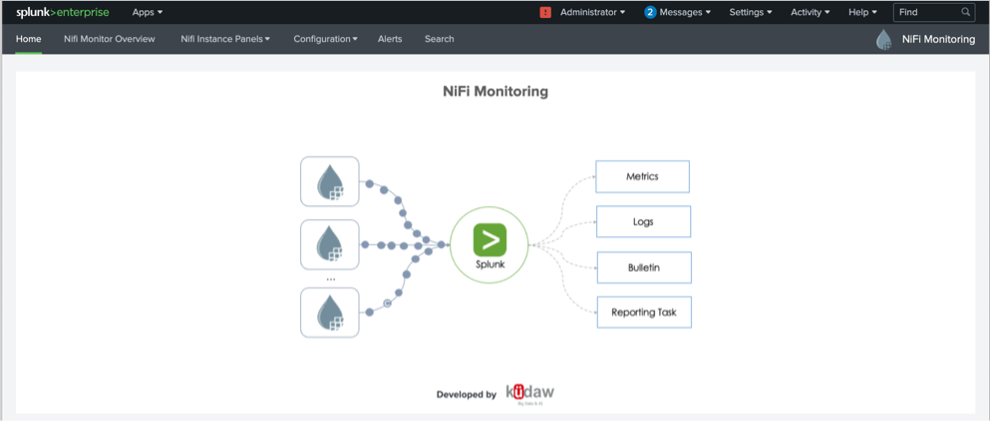
To configure, in the Splunk where the Nifi Monitoring application is installed, open the app's Home.
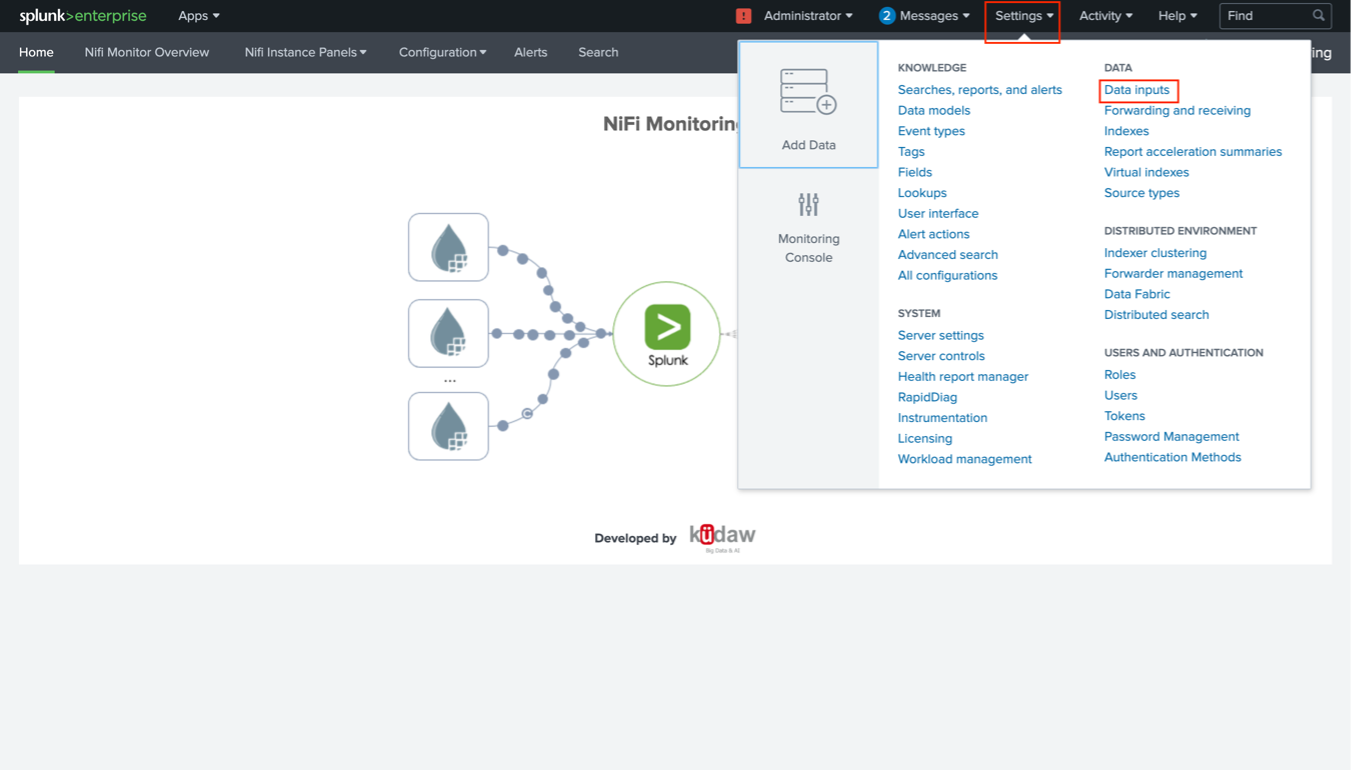
Then go to Settings > Data Inputs.
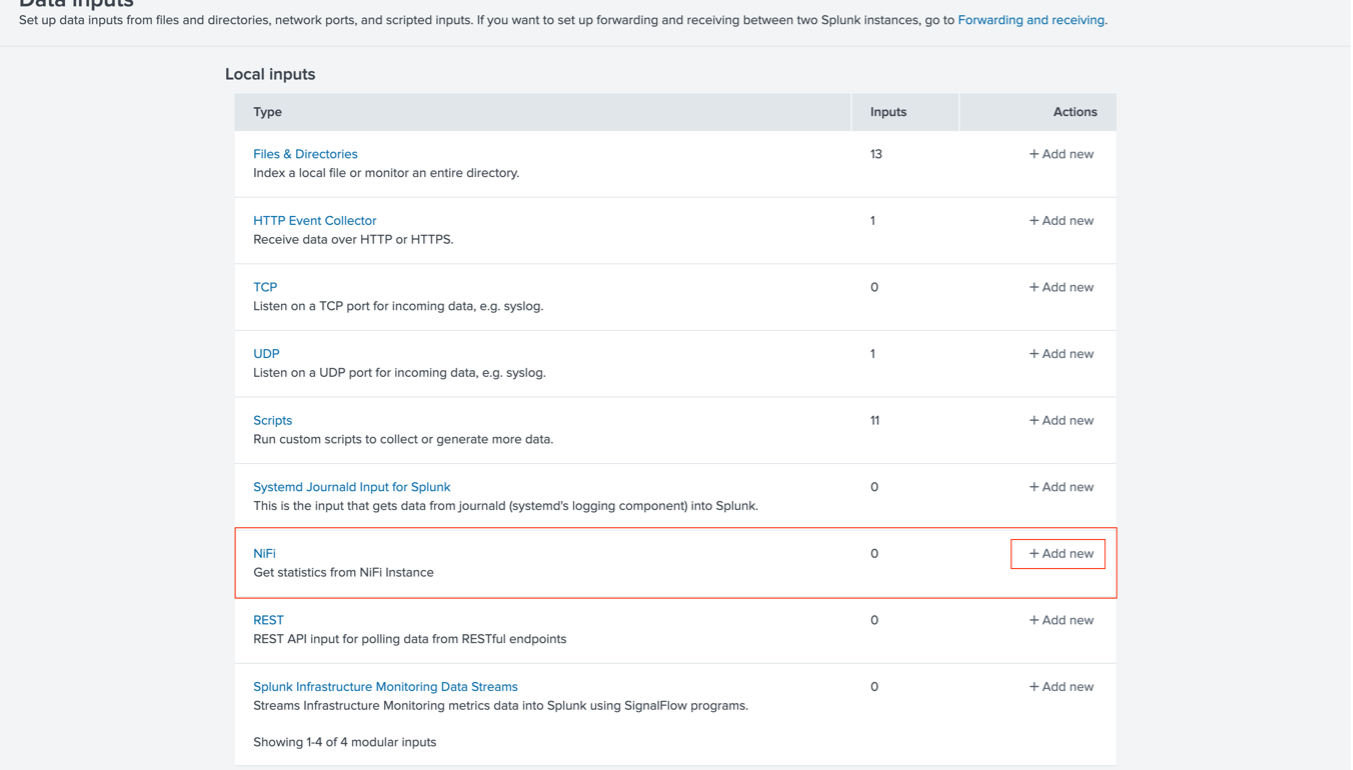
In the local data inputs, find NiFi and click + Add new.
A window like the following will be displayed:
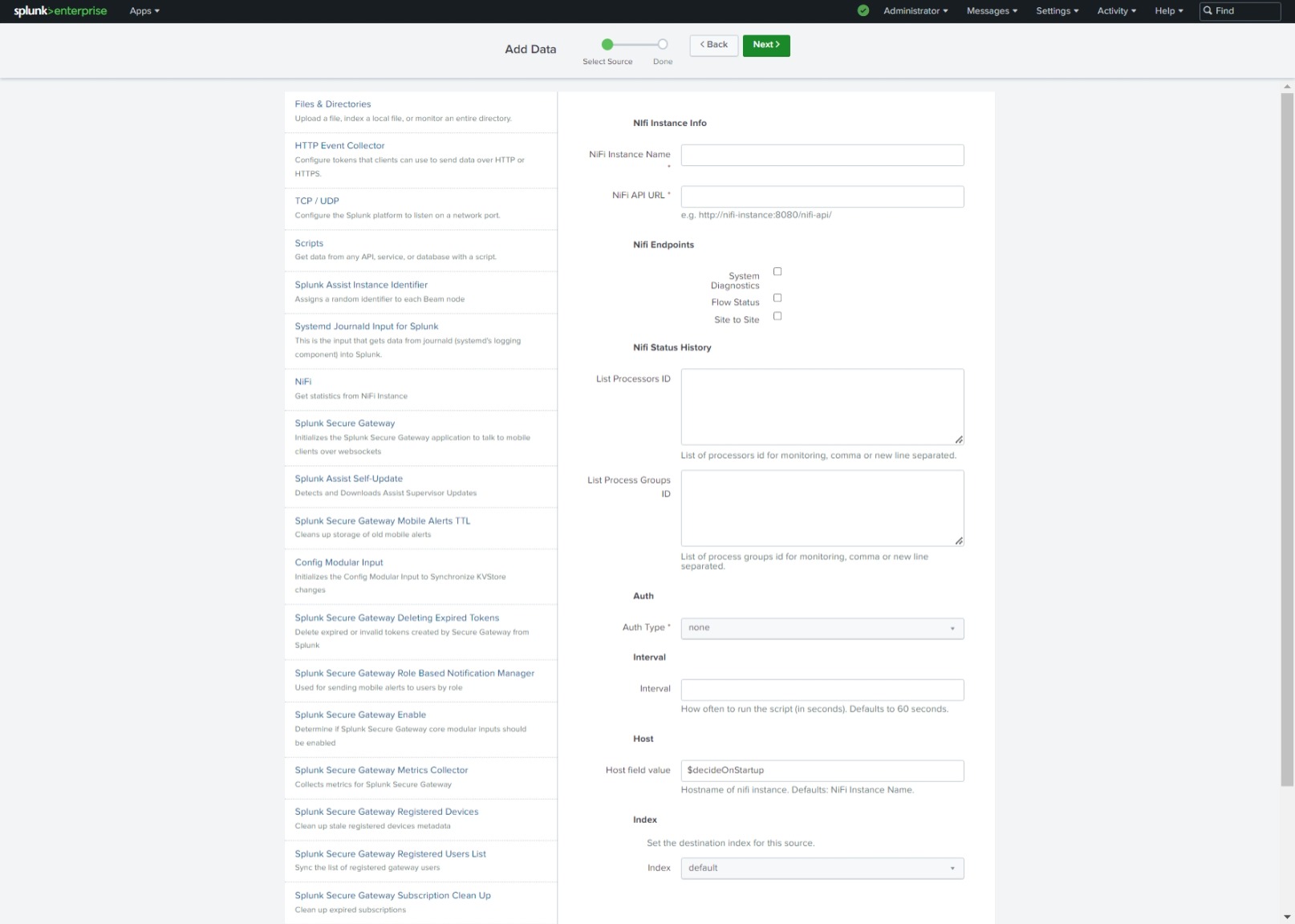
We recommend configuring each of the monitoring resources independently, for later changes in the configuration and because of the execution times to obtain data.
The resources are:
- a. NiFi Endpoints
- b. NiFi Status History for Processors
- c. NiFi Status History for Process Groups
1. Basic resource configuration
For each of the resources you must configure all the required fields:
- NIFI Instance name: a name for the NiFi instance.
- NIFI API URL: the NiFi REST API address (e.g.
http://<address:port>/nifi-api/). - Auth Type: the authentication type:
none: no authentication.basic: access with username and password credentials.
- Interval: time in seconds between the requests that extract the information; 60 seconds by default.
- Host: the name of the NiFi host, which must match what is defined in the Instance Lookup.
- Index: the destination index for this data source. A dedicated index
is recommended, for example
nifi. If it does not exist, create it first.
a. NiFi Endpoints
In the NIFI Endpoints section, select the elements to monitor from the list:
- System Diagnostics
- Flow Status
- Site to Site
b. NiFi Status History for Processors
In the NIFI Status History > List Processors ID section, give the IDs of the processors to monitor, separated by commas if there are several.
c. NiFi Status History for Process Groups
In the NIFI Status History > Process Groups ID section, give the IDs of the process groups to monitor, separated by commas if there are several.
After the configuration is complete, click Next and the input is created.
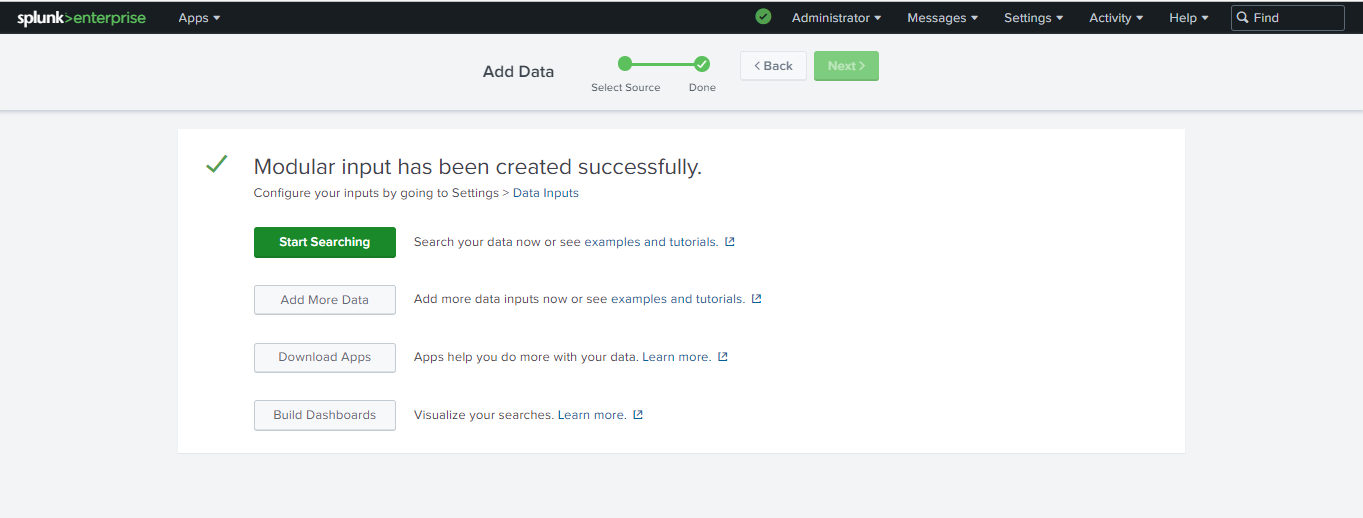
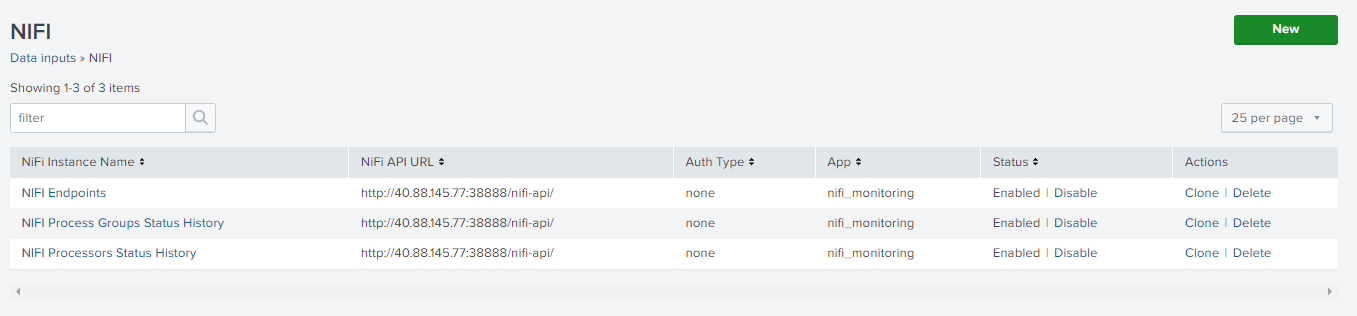
Repeat the configuration for each resource you need to monitor. An example of the three resources created independently:
Then configure the Instance Lookup, which is needed whichever strategy you use.